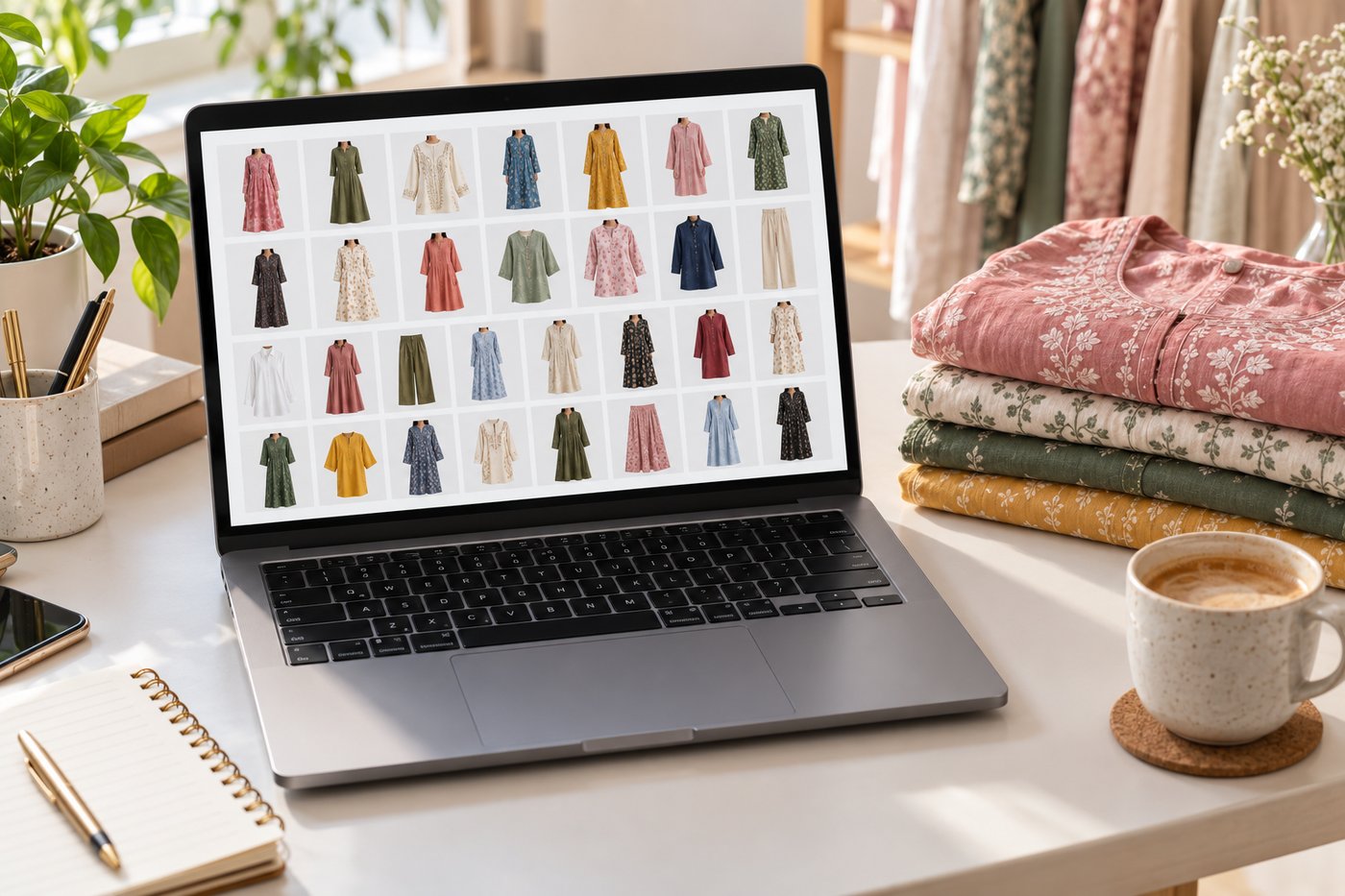
For 200 or more product photos, the fastest reliable route is a bulk AI background remover, which processes a few hundred images in 10 to 30 minutes with no setup. Photoshop's Remove Background can be batched through an Action plus Image Processor, but on apparel it produces inconsistent edges around hair, fringes and semi-transparent fabric, and you will spend longer fixing those than you saved. If this is a recurring job rather than a one-off, an API is the correct answer.
The honest answer about Photoshop
People land here searching some version of "I have 200 product photos that need backgrounds removed by tomorrow — what's the fastest way to batch this in Photoshop?", so let us answer that directly before offering alternatives.
Yes, you can batch it. The route is:
- Open one representative image. Window → Actions → New Action, name it, hit record.
- Select the subject layer, then in the Properties panel click Remove Background. Flatten or export as needed. Stop recording.
- File → Scripts → Image Processor. Point it at your source folder, pick an output folder and format, and under "Preferences" tick Run Action and choose the action you just recorded.
- Start it and leave the machine alone.
And here is why it disappoints on apparel specifically. Photoshop's one-click Remove Background works by subject detection, and it is genuinely good on high-contrast, hard-edged subjects — a shoe on white, a bottle, a box. Clothing breaks it in three predictable places:
- Hair and fur on model shots — the mask cuts through strands rather than around them.
- Fringes, tassels and lace — pallu fringe and lace hems get amputated.
- Sheer and semi-transparent fabric — chiffon, organza and net either go fully opaque or fully vanish, because a binary mask cannot express partial transparency.
On a 200-image apparel batch, expect to hand-correct somewhere between 30 and 60 of them. That is the night you were trying to avoid.
The three routes, with real numbers
| Route | Setup time | 200 images | Apparel edge quality | Cost |
|---|---|---|---|---|
| Photoshop Action + Image Processor | 10–15 min | 25–60 min unattended, plus 2–4 hrs fixing | Poor on hair, fringe, sheers | Existing CC licence |
| Bulk AI background remover | None | 10–30 min | Good — trained on cutouts specifically | Free tiers to ~$29/mo |
| API integration | 1–3 hrs (once) | 2–10 min | Good | Per-image or credits |
The decision is mostly about whether this recurs. A genuine one-off with a deadline: use a bulk AI tool tonight. Something you will do every month as new stock lands: spend the afternoon on the API and never think about it again.
What to check before you run 200 images through anything
Five minutes here saves the whole batch.
- Run 5 representative images first. Include your worst case — the sheerest fabric, the busiest background, the item closest in tone to its backdrop. If those five come back clean, the other 195 will.
- Decide transparent PNG or white background now. Most marketplaces want a solid white background, not transparency. Exporting 200 transparent PNGs and then compositing them onto white is two jobs where one would do.
- Check the output resolution. Free tiers very often downscale. Amazon wants the longest side at 1600px minimum for zoom; Meesho and Flipkart want 1200x1200. A batch that comes back at 800px is a batch you run twice.
- Keep the originals. Obvious, routinely ignored, and unrecoverable.
- Check your filenames survive. A tool that returns
image_001.pngthroughimage_200.pnghas destroyed the mapping to your SKUs.
Background removal is usually not the actual job
Worth saying plainly: for most fashion sellers, removing the background is a step toward something else, and doing it in isolation creates a second task.
If the goal is a marketplace listing, the finished image needs a white background at a specific canvas size with the product occupying a specific proportion of the frame. Amazon, Flipkart, Myntra, Meesho, Etsy and Shopify all specify this differently. A folder of 200 cutouts is not a folder of 200 listing images.
CatalogX handles background removal as part of Marketplace Export rather than as a standalone step: the cutout, the white canvas, the subject ratio and the required disclosure metadata are applied together, across 15 platform presets, free on every plan including the free tier. If what you actually need is the garment on a model rather than on white, that is the same upload — see flat lay to model.
Frequently asked questions
Record an Action containing Select Subject and Remove Background, then run it across a folder via File → Scripts → Image Processor with 'Run Action' enabled. It processes 200 images unattended in roughly 25 to 60 minutes, but on apparel expect to hand-correct 30 to 60 of them around hair, fringes and sheer fabric.
Yes. Bulk AI background removers handle 500 images in roughly 30 to 60 minutes with no setup, and an API handles the same volume in minutes. Photoshop's Image Processor will also do it, but the correction time on apparel scales with the batch.
Because it is an edge-confidence problem. Where subject and background differ sharply in colour and brightness, the boundary is unambiguous and the mask is clean. Low-contrast pairings — a grey garment on a grey backdrop — and partially transparent edges like fringe and chiffon force the algorithm to guess per pixel.
White background, for almost all marketplace listings. Amazon, Flipkart, Myntra and Meesho all want a solid white background on the main image, so exporting transparency means compositing onto white afterwards. Export transparent only if you are placing products onto designed backgrounds yourself.
Frequently, yes — free tiers commonly cap output resolution well below marketplace minimums. Check the output dimensions on a test image before committing a batch; Amazon needs 1600px on the longest side for zoom, and Meesho and Flipkart want 1200x1200.
No. A cutout still needs the correct canvas size, the correct subject-to-frame ratio and a solid white background, and each marketplace specifies those differently. Doing removal in isolation leaves the resizing job untouched, which is why tools with export presets save more time than their removal quality alone suggests.