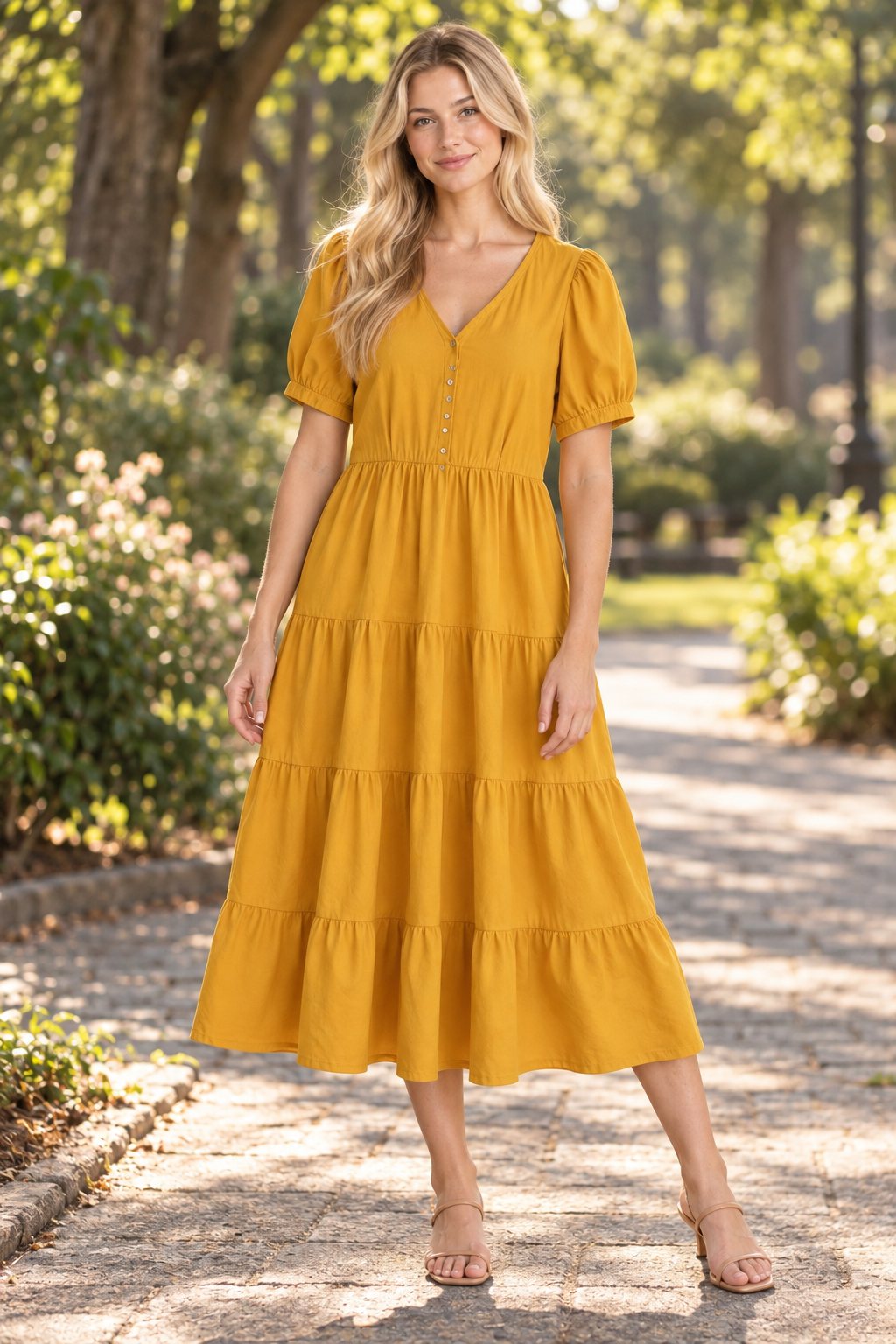
You have spent time shooting your product, removing the background, and creating a clean cutout. The image looks sharp, the colors are accurate, and the garment details are crisp. But something feels off. The product looks like it is pasted onto the page rather than sitting on it. It looks flat and weightless.
The missing element is almost always a shadow. Shadows are what anchor objects to surfaces in the real world. Without them, even the highest-quality product photo can look like a cheap clip-art sticker. This is one of the most common and easily fixable problems in e-commerce product photography.
In this guide, we will cover why shadows matter, the difference between drop shadows and natural shadows, and how to add both using CatalogX -- with the drop shadow option being completely free.
Why Shadows Matter for Product Images
Shadows do more work than most sellers realize. They are not just a visual nicety -- they directly affect how customers perceive your product:
- Grounding effect: A shadow beneath a product tells the viewer's brain that the object is resting on a surface. Without it, the product appears to hover, which feels unnatural and draws attention away from the product itself.
- Perceived quality: Professional studio photos always include subtle shadows from controlled lighting. When your product images have shadows, they signal studio-grade quality -- even if the photo was taken on a phone.
- Depth and dimension: Shadows add a sense of three-dimensionality. A flat product cutout on a white background looks two-dimensional. Add a shadow, and the same image suddenly feels tangible and real.
- Visual consistency: If some of your product images have shadows and others do not, your catalog looks inconsistent. Applying uniform shadows across all products creates a cohesive, professional storefront.
- Marketplace standards: While marketplaces like Amazon, Etsy and Flipkart allow white-background images without shadows, the top-performing listings almost always include subtle shadow effects that make products pop off the page.
Drop Shadow vs Natural Shadow: Which One to Use
There are two fundamentally different approaches to adding shadows to product photos, and each serves a different purpose.
Drop shadow (simple, algorithmic):
- A uniform shadow placed behind and below the product at a fixed offset
- Created using image processing (PIL/Pillow) with no AI involved
- You control the offset, blur radius, and opacity
- Fast, predictable, and consistent across all images
- Best for: catalog pages, marketplace listings, and situations where you need speed and uniformity
- Cost on CatalogX: completely free, no credits required
Natural shadow (AI-generated, photorealistic):
- AI analyzes the product shape and generates a realistic shadow that mimics real-world lighting
- Includes contact shadow (darkest at the base where the product meets the surface), soft falloff, and ambient occlusion
- The result looks like the product was actually photographed in a studio with directional lighting
- Best for: hero images, Instagram posts, lookbooks, and any context where photorealism matters
- Cost on CatalogX: 1 credit per image
How to Add Shadows Using CatalogX
CatalogX offers both shadow types in a single tool. Here is the step-by-step process:
- Prepare your image: Start with a product cutout on a transparent background (PNG with transparency). If your image still has a background, use CatalogX's free background removal tool first.
- Open the Shadow tool: Log in to CatalogX and navigate to the Shadow tool under Tools, or go directly to /tools#shadow.
- Upload your product image: Drag and drop your transparent PNG or click to browse. The tool accepts images up to 5MB.
- Choose your shadow type: Toggle between "Drop" (free) and "Natural" (AI-powered). For drop shadow, adjust the offset X, offset Y, blur radius, and opacity sliders to match your desired look.
- Apply and preview: Click Apply to generate the shadow. The tool shows a before/after comparison slider so you can see the exact difference.
- Download: Click Download to save the final image with the shadow applied.
Drop shadow is free on all plans. AI natural shadow starts at 1 credit. No Photoshop needed.
Add Shadows to Your Products →
Understanding Drop Shadow Controls
The free drop shadow tool in CatalogX gives you four parameters to fine-tune the shadow effect. Understanding what each one does will help you get consistent, professional results across your entire catalog.
- Offset X: Controls how far the shadow shifts horizontally from the product. A positive value moves the shadow to the right, simulating light coming from the left. For most product images, a small value between 2 and 8 pixels works well.
- Offset Y: Controls the vertical shift. A positive value moves the shadow downward, which is the most natural-looking direction since overhead lighting is standard in product photography. Values between 4 and 12 pixels produce a subtle, grounded look.
- Blur radius: Determines how soft or sharp the shadow edge is. A low blur (2-5 pixels) creates a tight, defined shadow for a hard-light look. A higher blur (10-20 pixels) creates a softer, more diffused effect. For e-commerce, a medium blur around 8-12 pixels usually looks best.
- Opacity: Controls how dark the shadow appears. At full opacity, the shadow is solid black. At lower values, it becomes more transparent and subtle. For product photos, an opacity between 0.15 and 0.35 strikes the right balance -- visible enough to ground the product, but not so heavy that it distracts.
When to Use AI Natural Shadows
The AI natural shadow goes beyond a simple offset effect. It analyzes the shape and contours of your product to generate a shadow that looks like it was cast by real studio lighting. Here is when the extra realism is worth the credit cost:
- Hero and banner images: When a single product image needs to carry a landing page, social media post, or ad creative, the natural shadow makes it look like a proper studio shot.
- Lifestyle and lookbook contexts: If you are placing products in styled compositions, natural shadows help them integrate with the scene rather than looking pasted in.
- High-value products: For premium items like designer wear, wedding garments, or luxury accessories, the photorealistic shadow reinforces the perceived quality.
- Products with complex shapes: Items like shoes, bags, or draped garments benefit more from natural shadows because a uniform drop shadow does not match their irregular silhouettes.
For standard catalog listings where you are processing dozens or hundreds of products, the free drop shadow is the more practical choice. It produces clean, professional results at scale without any cost per image.
Tips for Best Shadow Results
Whether you use drop shadow or natural shadow, these practices will help you get the best output:
- Start with a clean cutout: Shadows look best on images with clean, well-defined edges. If your background removal left artifacts or rough edges around the product, clean those up first. A messy cutout produces a messy shadow.
- Use transparent PNGs: The shadow tool works with white backgrounds, but transparent PNGs produce better results because the tool can detect the exact product boundary. JPEGs do not support transparency.
- Match shadow direction across products: If you are building a product catalog, make sure all shadows fall in the same direction. Mixed shadow angles (some to the left, some to the right) look inconsistent and break the visual flow of a collection page.
- Keep shadows subtle: The best product shadows are the ones you almost do not notice. They should ground the product without drawing attention to themselves. If the shadow is the first thing a viewer notices, it is too heavy.
- Consider your background color: Shadows are most visible on white or light backgrounds. If your marketplace or store uses a colored or dark background, you may need to adjust opacity accordingly.
Shadow Workflow: From Raw Photo to Marketplace-Ready
Here is the complete workflow for taking a raw product photo to a marketplace-ready image with professional shadows, all within CatalogX:
- Shoot your product on any background. A phone camera and natural light are fine for most garments.
- Remove the background using CatalogX's free background removal tool. This gives you a transparent PNG cutout.
- Add a shadow using the Shadow tool. Use drop shadow for catalog images or AI natural shadow for hero shots.
- Export for your platform using CatalogX's marketplace export tools to resize the image to the correct dimensions for Amazon, Etsy, Shopify, Flipkart, Myntra or your own store.
This entire pipeline -- from raw photo to final marketplace image -- can be completed in under two minutes per product. At scale, that is hundreds of marketplace-ready images per day without a Photoshop license, a design team, or per-image editing fees.
Related Articles
- How to Remove Background from Fashion Product Photos -- Free AI Tool
- Flat-Lay vs Model Shots: Which Sells More?
- Best AI Product Photo Tools Compared
Frequently Asked Questions
A drop shadow is a simple, uniform shadow effect placed beneath the product at a fixed offset and blur. It is fast, predictable, and free on CatalogX. A natural shadow is AI-generated and mimics real-world lighting with contact shadow at the base, soft falloff, and ambient occlusion. Natural shadows look more photorealistic but cost 1 credit per image on CatalogX.
Yes. Shadow tools work best on product images with transparent backgrounds. If your image has a busy or colored background, remove it first using a background removal tool. CatalogX offers free background removal -- process your image there first, then add shadows to the resulting transparent PNG.
Yes. CatalogX's drop shadow is completely free on all plans with no per-image charges and no watermarks. You can apply drop shadows to unlimited images without using any credits. Only the AI natural shadow option requires credits.
Yes. For drop shadows, you can adjust offset X and Y, blur radius, and opacity to control the shadow's position, softness, and darkness. For AI natural shadows, you can set the intensity and tweak the result before export. This lets you match shadows to your brand's style and lighting conditions.
Products without shadows appear to float against the background, which looks unnatural and cheapens the presentation. Shadows provide visual grounding -- they anchor the product to a surface, add depth, and create a sense of three-dimensionality. This is why studio photographers always use controlled lighting that creates subtle shadows beneath products.