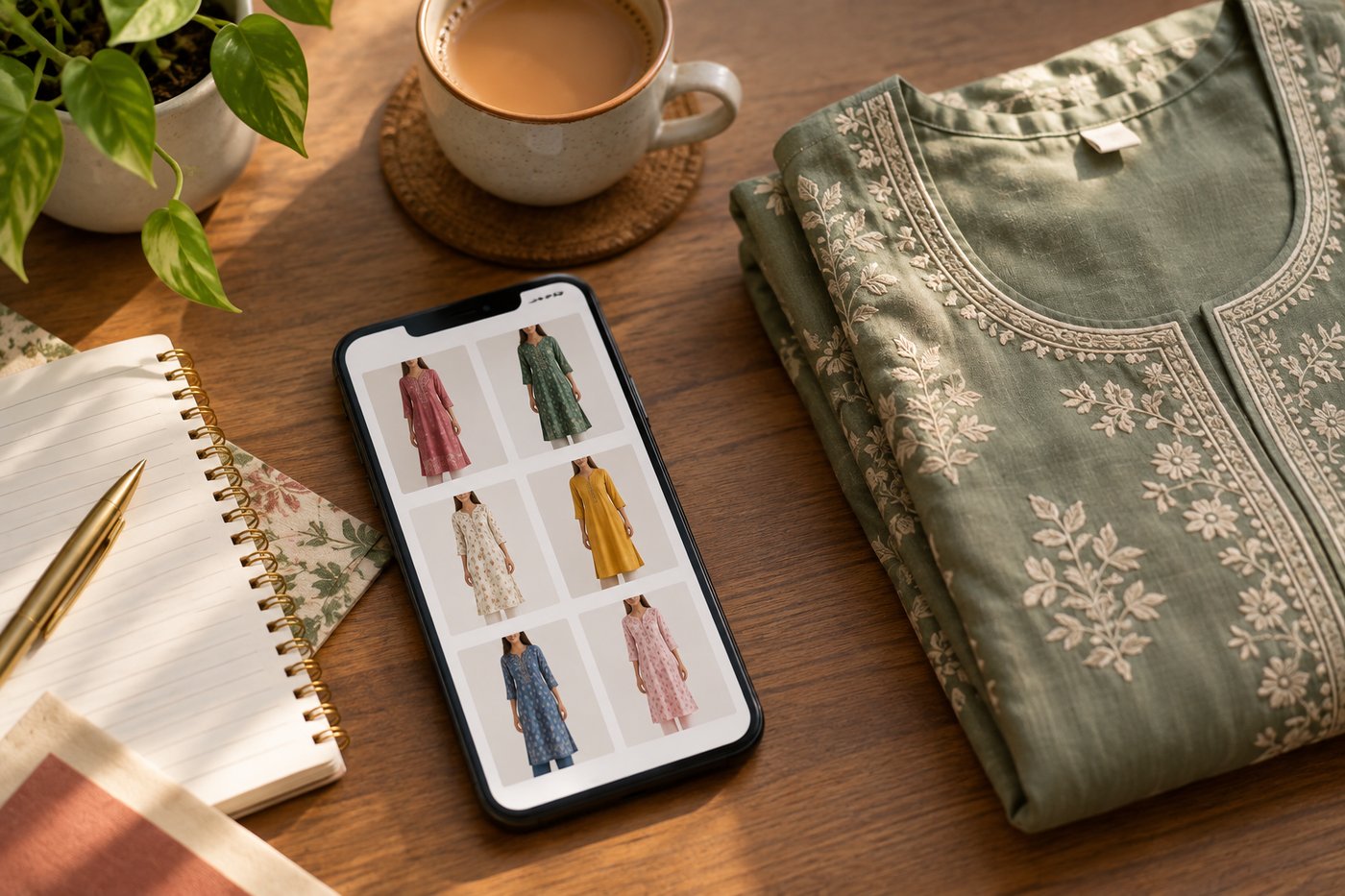
For most Indian boutiques, WhatsApp is not a marketing channel — it is the shop. Customers ask "new collection aaya kya?", you forward photos, they reply "ye wala pink me hai?", and the sale closes in chat. A WhatsApp Business catalog turns that scattered photo-forwarding into a proper browsable shopfront inside the app your customers already open fifty times a day. This guide covers the setup in plain steps, and then the part most guides skip: why two boutiques with the same catalog structure get completely different sales — because of what is in the product photos.
WhatsApp Catalog Setup: Step by Step
You need the free WhatsApp Business app (the green icon with a "B"), not regular WhatsApp. If you are still running your boutique on a personal WhatsApp number, download WhatsApp Business first — you can keep your existing number by migrating it.
- Open Settings → Business tools → Catalog. On Android, tap the three dots at the top right to find Settings; on iPhone, use the Settings tab.
- Tap "Add new item." This creates your first product entry.
- Add product images. You can attach up to 10 images (or a video) per item. The first image is the thumbnail customers see while browsing — make it your strongest shot.
- Fill in the details. Name (e.g., "Banarasi Silk Saree — Teal"), price, description (fabric, sizes available, blouse included or not), and an item code if you use SKUs. Clear sizing info in the description saves you twenty repeated questions a day.
- Save and wait for review. Meta reviews each item against its commerce policies before it appears — usually within minutes, occasionally up to about 24 hours. Items with unclear images or descriptions that do not match the photo can be rejected.
- Repeat for your core stock. You do not need every SKU on day one. Start with bestsellers and the current season's pieces.
Once live, customers see a storefront icon on your business profile and can browse, tap an item, and message you about it directly — the product card attaches to the chat automatically, so you always know which piece "ye wala kitne ka hai?" refers to.
Catalog Limits and Image Specs
| Item | Specification (as of July 2026) |
|---|---|
| Catalog size | Up to 500 items per WhatsApp Business account; one catalog per account |
| Images per item | Up to 10 images (or a video) per product |
| Image format | JPG or PNG, under 5 MB per image |
| Image size | Minimum around 500×500 px; upload square 1:1 at 1080×1080 for sharp thumbnails |
| Shape | Square — WhatsApp crops catalog thumbnails to 1:1, so landscape photos get cut off |
| Review | Every item is reviewed by Meta before going live (minutes to ~24 hours) |
The practical takeaways: shoot or export square, keep the garment centred so nothing important sits near the edges, and never rely on a landscape photo where the lehenga's border falls outside the square crop.
Your Catalog Is Only as Good as Its Photos
Here is the uncomfortable truth about WhatsApp catalogs: the setup above is identical for every boutique. The item limit is the same, the layout is the same, the storefront icon is the same. The only variable you control that changes buying behaviour is the photo inside each square tile.
And boutique garments have a specific problem: they look ordinary flat and extraordinary worn. A ₹4,500 organza saree photographed folded on a shelf looks like a ₹800 saree. The drape, the fall, the way the pallu catches light — none of it exists in a flat photo. Your customer is buying how she will look, and a flat photo makes her do the imagining herself.
| Flat / hanger photo | On-model photo | |
|---|---|---|
| Shows | Fabric, print, colour | Fit, drape, fall, styling — the actual purchase decision |
| Customer reaction | "Material kaisa hai?" | "Ye mere size me hai?" — a buying question, not a browsing question |
| Perceived value | Flattens premium pieces | Justifies boutique pricing |
| Best use | Images 2-10: fabric close-ups, back view, plain reference shot | Image 1: the thumbnail that gets tapped |
The formula that works for boutique catalogs: model shot as image 1, then fabric close-up, border detail, back view, and one honest flat photo of the actual piece. The model shot earns the tap; the detail shots close the sale and prevent "photo se alag hai" complaints. For garment-specific technique, see our saree photography guide and the DIY product photography at home guide.
Model Photos Without a Photographer
The traditional answer — hire a model and photographer — costs ₹15,000+ per session in India. For a boutique adding new pieces every couple of weeks, that is simply not a recurring expense that makes sense. Wearing the pieces yourself or asking family members works for some, but it is slow, inconsistent, and many boutique owners are not comfortable being the face of every listing.
The 2026 answer is AI virtual try-on. With CatalogX, the workflow fits between customer chats:
- Photograph the garment with your phone — flat on a clean bedsheet or on a hanger, near a window in daylight. This is the same photo you would have taken anyway.
- Upload it and pick a model. Choose from 40+ Indian AI models — different ages, skin tones, and body types, so the model can match your actual customer. 14+ garment types are supported, including sarees, kurtis, and lehengas.
- Pick a background from 50+ options — a clean studio look for the thumbnail, or a festive setting for a Diwali collection.
- Generate in about 30 seconds. The AI drapes your real garment — its actual print, border, and colour — onto the model. Free background removal, HD upscale, and export presets are included, and square export means it drops straight into the WhatsApp catalog tile without awkward cropping.
Cost-wise: 5 free credits on signup with no card, a ₹299/month Starter plan with 15 HD credits (about ₹20 per photo), or ₹849/month Pro for 50 generations if you refresh stock constantly. One photoshoot session's budget covers years of catalog photos this way. One honest rule: always compare the generated image against the physical piece before publishing — the photo must show the real garment accurately, on WhatsApp just as on any marketplace.
Organizing Collections: Festive, New Arrivals, Sale
WhatsApp Business lets you group catalog items into collections — named groups that customers see as sections when they open your storefront. A 200-item catalog without collections is a wall; with collections it is a shop with aisles. Structures that work for boutiques:
- New Arrivals — always first. Repeat customers open your catalog precisely to see what is new. Refresh it weekly, even if only with two pieces.
- Festive / Wedding — a seasonal collection ("Diwali Edit", "Shaadi Season") created a few weeks before the occasion. Use model shots with festive backgrounds here; the context sells the occasion.
- By garment type — Sarees, Kurtis & Sets, Lehengas, Dupattas. This mirrors how customers ask ("kurti section dikhao").
- Under ₹999 / Sale — a price-anchored collection converts window-shoppers and gives you something concrete to push in Status.
Keep collection names short — they display as small labels on a phone. And prune: an "New Arrivals" collection with three-month-old pieces trains customers to stop checking.
Broadcast and Status Tips
The catalog is the shop; broadcasts and Status are the footfall. A few practices that consistently work:
- Status is your daily shop window. Post 1-3 items to WhatsApp Status regularly — it disappears after 24 hours, which creates natural urgency ("aaj ka piece"). Use your best model shot, not a flat photo; Status viewers scroll fast and stop for people, not folded fabric.
- Broadcast lists reach only saved contacts. A broadcast message is delivered only to customers who have saved your number, and each list holds up to 256 recipients — so your real job is getting customers to save your number ("save this number to see our Diwali collection first").
- Send catalog links, not loose photos. Instead of forwarding images, share the item or collection link from the catalog. The customer gets the price and description attached, and their reply is tied to the exact product.
- Broadcast less, better. One strong weekly broadcast — new collection, with one hero model shot — beats daily forwards that get you muted or reported. Messages reported as spam can put your number at risk, so keep broadcasts genuinely useful.
- Reply with the catalog. When someone asks "kurti me kya hai?", send the Kurtis collection link instead of ten photos. It looks professional and every item carries its price, killing the price-question ping-pong.
Turn your existing garment photos into on-model shots in ~30 seconds each. 5 free credits, no card needed.
Start Free — 5 Credits →
Frequently Asked Questions
As of mid-2026, a WhatsApp Business account supports up to 500 items in its catalog, with one catalog per account. Each item can have up to 10 images (or a video). If your boutique stocks more than 500 SKUs, keep the catalog for bestsellers and current-season pieces rather than trying to list everything. Limits can change, so check WhatsApp's official help centre for current numbers.
Catalog images should be square (1:1), because WhatsApp crops catalog thumbnails to a square — landscape photos get cut awkwardly. WhatsApp requires JPG or PNG under 5 MB, with a commonly cited minimum around 500×500 pixels; uploading at 1080×1080 keeps images sharp on every phone. Check WhatsApp's help centre for the current specification.
Yes. The WhatsApp Business app is free to download, and the catalog feature costs nothing — no listing fees and no commission on sales. Your only real costs are your products and your photos, which is exactly why photo quality is where boutiques should invest.
Use AI virtual try-on. Photograph your garment flat or on a hanger with your phone, upload it to a tool like CatalogX, pick from 40+ Indian AI models and 50+ backgrounds, and get an on-model photo of your real garment in about 30 seconds. A traditional photoshoot costs ₹15,000+ per session; CatalogX starts free with 5 credits and the Starter pack is ₹299/month for 15 HD credits.
Meta reviews every catalog item against its commerce policies before it goes live — usually within minutes, but it can take up to around 24 hours. Items get rejected for unclear images, prohibited content, or mismatched descriptions. Use a clear photo of the actual product, write an accurate description, and re-submit if needed. If problems persist, check the rejection reason in the app and WhatsApp's commerce policy.