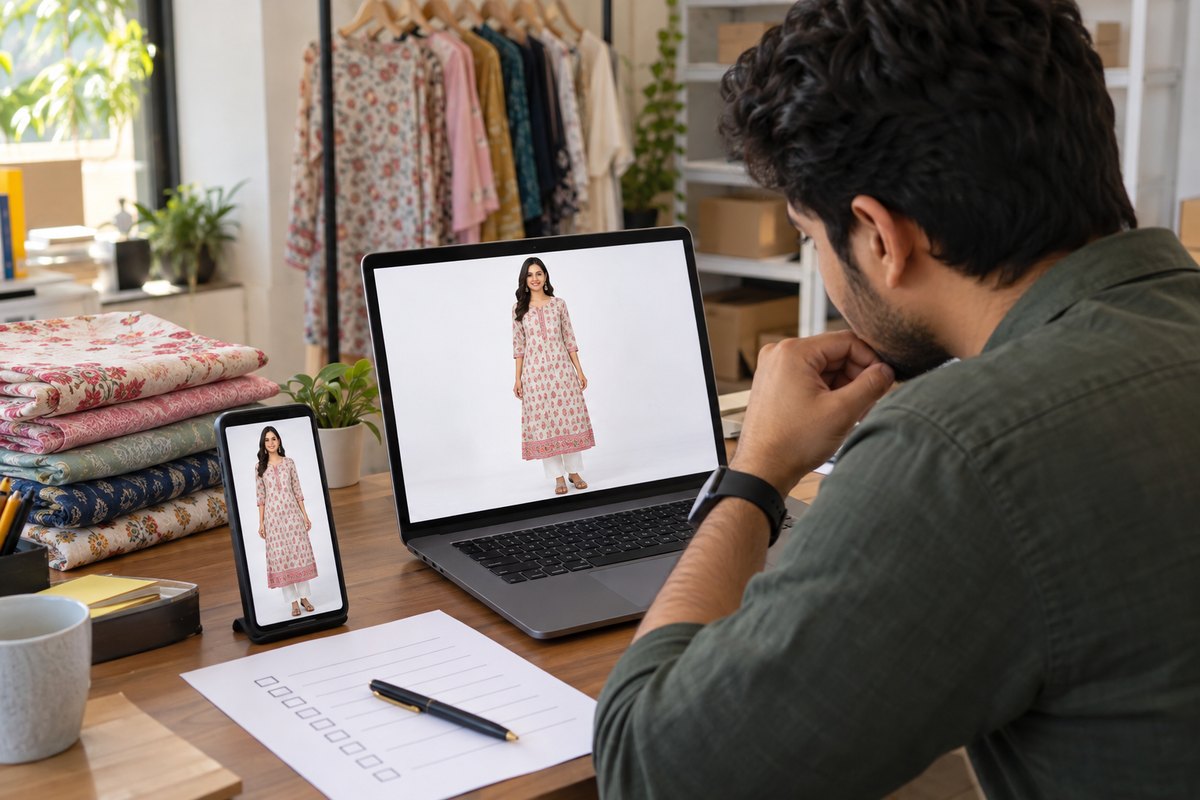
You uploaded your catalog, waited a day or two, and got the message no seller wants: image QC failed. Frustrating — but almost always fixable in one round if you know what Flipkart's quality check is actually looking for. QC rejections are not random. They fall into a short list of repeat offenders: wrong dimensions, background problems, watermarks and text, blur, mannequin visibility, and mismatches between the image and the listing details. This guide walks through each reason, the fix, and a re-upload checklist built for fashion sellers.
Flipkart QC Kya Check Karta Hai?
When you submit a listing, Flipkart's catalog quality check reviews your images and details before the product goes live — typically within 24 to 48 hours, sometimes faster for sellers with strong account history. The check covers two broad things:
- Technical quality: resolution, aspect ratio, background, sharpness, and whether the frame is used properly.
- Content accuracy: does the image show the actual product, without text, watermarks, price stickers, or elements that contradict the listing (brand name, MRP, colour, style)?
If a check fails, the listing comes back with an error tag identifying what went wrong. That tag maps to one of the reasons below. Fix only what the tag says — do not re-shoot everything blindly, because a fresh upload with a new mistake restarts the whole QC cycle.
7 Common Rejection Reasons & Unke Fixes
1. Wrong dimensions ya stretched aspect ratio
Flipkart works on a square 1:1 canvas. Images that are too small get rejected automatically — very low resolutions (commonly cited as below roughly 500×500 pixels) fail outright, and working sizes of 1000×1000 or higher are widely recommended so the zoom feature works on the product page. The sneakier version of this failure is the stretched image: a seller takes a vertical phone photo and force-resizes it into a square, distorting the kurti or saree in the process. Distorted proportions look wrong to QC reviewers and to buyers.
Fix: never stretch. Pad the image onto a square canvas instead, keeping the garment's true proportions. Our free Flipkart photo resizer does exactly this — correct square output at upload-ready resolution, no distortion.
2. Background theek nahi hai
For main images in most categories Flipkart expects a clean background — pure white (RGB 255,255,255) is the standard for many verticals, and "almost white" is one of the most common silent failures. A grey-tinted bedsheet, a cream wall, or a shadowy floor shot all read as off-white to QC. Cluttered home backgrounds — hangers, furniture, other products in frame — are also rejected.
Fix: remove the background cleanly rather than trying to re-shoot against a "white" surface that will not photograph as true white. CatalogX's free background removal cuts the garment out and places it on a genuine pure-white canvas. For lifestyle slots, use a tidy, relevant background — not your storeroom.
3. Text, watermark, ya MRP sticker dikh raha hai
Any text overlay on the image — your shop name, "Sale", "Combo Offer", phone numbers, watermarks — is a rejection trigger on primary and secondary images. So is a visible MRP or price sticker on the product or its packaging, and combo-deal graphics pasted onto the photo.
Fix: upload the photo clean. Remove stickers from the garment physically before shooting, or crop/retouch them out. Promotions belong in Flipkart's own offer tools, not baked into the image.
4. Blurry ya pixelated photo
Blur comes from three places: shooting in low light (the phone raises ISO and the photo turns grainy), camera shake, or — most often — upscaling a small image to meet the size requirement, which produces a soft, pixelated result that fails QC even though the dimensions are technically correct.
Fix: shoot in daylight near a window, hold the phone steady or rest it on a surface, and tap to focus on the fabric. If your only copy of an image is small, use a proper HD upscaler rather than a plain resize — CatalogX includes free HD upscaling that recovers sharpness instead of just enlarging pixels.
5. Mannequin dikh raha hai (jahan model image chahiye)
In several apparel and footwear categories, Flipkart's style guides expect on-model presentation or a clean product-only presentation — and a visible mannequin (head, neck joint, stand, or torso showing) can fail QC in those categories. This catches many fashion sellers who shoot on a dress form because hiring a model is expensive.
Fix: three options. (a) Ghost-mannequin edit — remove the mannequin so only the garment shows with shape. (b) A neat flat-lay, where your category permits it. (c) An on-model image — which you can now generate without a photoshoot: upload your real garment photo to CatalogX, pick from 40+ Indian AI models, and get an on-model shot in about 30 seconds where the garment in the output is your actual garment, not an AI invention. Check your category's image guideline in the seller panel to confirm which presentation is required.
6. Brand ya MRP mismatch
QC also compares your image against your listing details. If the garment in the photo shows a brand label different from the brand entered in the listing, or the packaging shows an MRP that contradicts the MRP field, the listing bounces. The same applies to colour and style mismatches — a "maroon" listing with a photo that looks red, or a photo showing a different neckline than described.
Fix: make the image and the form tell the same story. Photograph the exact SKU you are listing, enter the brand exactly as it appears on the label, and double-check MRP, colour name, and style attributes against what is visible in the photo.
7. Product frame me chhota hai, ya ek frame me kai products
The product should fill a healthy portion of the square frame — commonly cited guidance is roughly 70–85% depending on category. A kurti floating tiny in a sea of white, or multiple garments crammed into one photo (unless the listing is a genuine set), both fail.
Fix: crop tight but complete — the full garment visible with a small, even margin. For sets, follow the category style guide on how combos should be shown.
| Rejection reason | Fastest fix |
|---|---|
| Wrong size / stretched ratio | Pad to 1:1 square with the free Flipkart resizer — never stretch |
| Off-white or cluttered background | Background removal onto true white |
| Text / watermark / MRP sticker | Re-upload clean image; keep offers out of photos |
| Blur / pixelation | Re-shoot in daylight or HD-upscale properly |
| Mannequin visible | Ghost-mannequin edit or AI model shot from your real garment |
| Brand / MRP mismatch | Align listing fields with what the photo shows |
| Product too small / multiple products | Crop to fill ~70–85% of frame; one product per image |
Step-by-Step Re-Upload Checklist
Before you hit submit again, run every image through this list. One clean pass beats three rejected attempts:
- Read the error tag. Open the rejected listing in your seller panel and note exactly which check failed. Fix that first.
- Confirm the canvas. Square 1:1, at least 1000×1000 recommended, no stretching or squashing. Verify your category's minimum in the seller panel.
- Check the background. Main image on pure white where your category requires it; no shadows of hangers, no props, no floor tiles.
- Zoom to 100% and inspect sharpness. If fabric texture is mushy, the image will read as blurry to QC.
- Scan for text. Watermarks, shop names, stickers, size tags, price tags — all must be gone from the image.
- Match image to listing fields. Brand, MRP, colour name, sleeve type, neckline — the photo and the form must agree.
- Check presentation for your category. Model shot, ghost mannequin, or flat-lay — whichever your category's style guide specifies. No visible mannequin where model images are expected.
- Fill the frame. Full garment visible, occupying most of the square, one product per image.
- Re-upload and note the timeline. Expect roughly 24–48 hours for QC; do not spam duplicate uploads while one is pending.
For the complete image spec table, slot-by-slot recommendations, and listing workflow, see our full Flipkart fashion image & listing guide and the Flipkart seller page.
CatalogX Se QC-Ready Images Kaise Banaye
Most QC failures trace back to three root causes — bad backgrounds, wrong dimensions, and missing model shots — and CatalogX was built to handle all three in one place:
- Background removal, free: upload any garment photo and get a clean cut-out on pure white — the single most common QC fix. How it works.
- Correct-size export, automatically: marketplace export presets output Flipkart-ready square images at the right resolution, so you never hand-resize (and accidentally stretch) again. The standalone Flipkart photo resizer is free to use.
- Model shots without a photoshoot: for categories where mannequin images fail, upload your real garment photo, choose from 40+ Indian AI models and 50+ backgrounds across 14+ garment types, and get an on-model image in about 30 seconds. Crucially, this is real-garment virtual try-on — the garment in the output is the one you uploaded, not something invented by AI, which is the distinction marketplaces care about (full breakdown in our AI image policy guide).
- Free HD upscale: rescue smaller images to upload-ready sharpness instead of pixelated enlargements.
You get 5 free credits on signup with no card required; the Starter pack is ₹299/month for 15 HD credits if you have a small catalog to fix, and Pro at ₹849/month covers 50 generations for regular listing work.
Clean background, correct Flipkart size, on-model shots from your real garment — in about 30 seconds per image.
Start Free — 5 Credits →
Frequently Asked Questions
The most common triggers are wrong dimensions or a stretched aspect ratio, a background that is not clean or pure white where required, visible text, watermarks or MRP stickers, blurry or pixelated photos, and images that do not match the listed brand or product details. Flipkart usually returns the listing with an error tag telling you which check failed — read that tag first, fix only that issue, and re-upload.
Flipkart works on a square 1:1 canvas. Very low-resolution images are rejected automatically, and commonly cited working sizes are at least 850×850 pixels with 1000×1000 or 2000×2000 recommended so the zoom feature works on the product page. Exact minimums can vary by category, so as of July 2026 you should verify the requirement for your category inside your seller panel before uploading.
Standard catalog QC is commonly reported to take around 24 to 48 hours after submission, and some sellers with strong account history see faster or instant QC in certain categories. If a listing fails again, Flipkart returns it with error tags identifying the fields or images that need correction, so you can fix and resubmit without guessing.
In several apparel and footwear categories Flipkart expects on-model or properly presented product images, and a visible mannequin — head, stand, or torso showing — can fail QC in those categories. The safe options are a ghost-mannequin style edit, a clean flat-lay where permitted, or an on-model image. Category rules differ, so check the image guideline for your exact vertical in the seller dashboard.
CatalogX handles the three most common fixes in one workflow: free background removal for clean backgrounds, marketplace export presets that output the correct square dimensions for Flipkart, and AI model shots generated from a photo of your real garment for categories where mannequin images fail. You start with 5 free credits and no card is required. Final QC decisions always rest with Flipkart, so verify the output against your category guidelines before uploading.